Invite teammates
Open Settings → Users when someone needs access to the organization, or when you need to resend or withdraw a pending invitation.
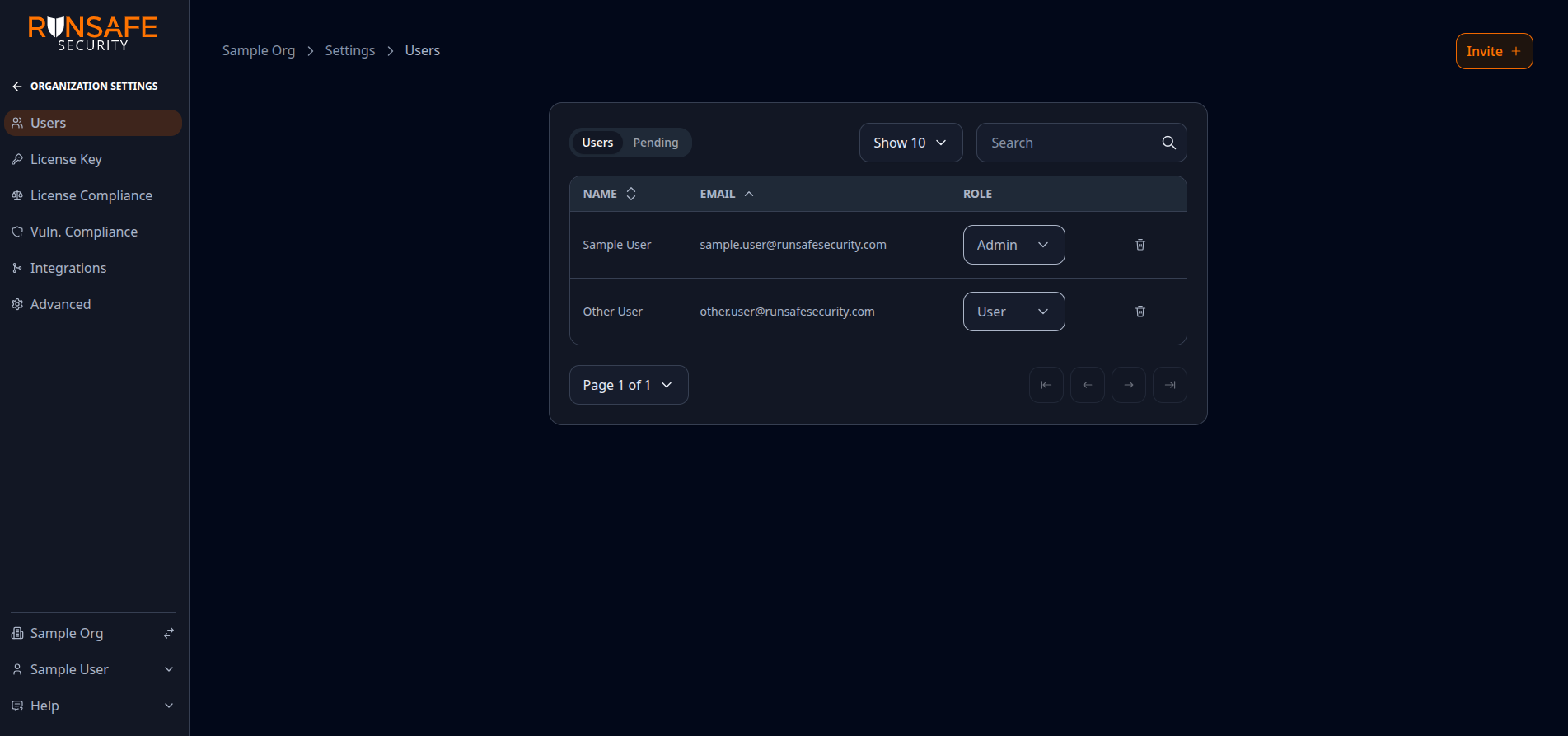
Invite members from Invite, switch between Users and Pending, and manage roles from the table.
Invite a user
Organization admins can invite a user from Settings → Users → Invite.
- Enter the email address the person should use when signing in.
- Choose the organization role they should receive.
- Send the invitation.
Pending invitations are tied to that email address. If the user will sign in with an OAuth provider such as GitHub or GitLab, send the invite to the same email address that provider returns.
Accept an invitation
Invitees should follow Accept an organization invite. That page covers both people who already have a Platform account and people who need to create one.
Manage pending invitations
Use the Pending tab to review outstanding invitations. Organization admins can resend or remove a pending invitation when a user's email address changes or the invite is no longer needed.
Organization roles
Each member has an Admin or User role in the organization. Organization admins set the role when they invite someone and can change it later from the Users table.
| Role | Use it for |
|---|---|
| Admin | Managing the organization: inviting and removing members, changing roles, and editing organization settings such as integrations, license and vulnerability compliance, vulnerability alert emails, and SSO. |
| User | Day-to-day work in the organization: reviewing SBOMs, vulnerabilities, license findings, and risk reduction; triaging findings; and connecting projects. Organization settings are read-only unless the page explicitly allows a change. |
Your role applies to whichever organization is active in the sidebar. See Switch between organizations.
Organization admins change a member's role from the Role column on Settings → Users.