Switch between organizations
When your account belongs to more than one organization, switch the active organization from the sidebar so dashboards, projects, and settings match the organization you intend to work in.
Open the organization switcher
- Sign in to the RunSafe Security Platform.
- In the bottom of the left sidebar, find the control that shows your current organization name.
- Select that control to open the organization switcher.
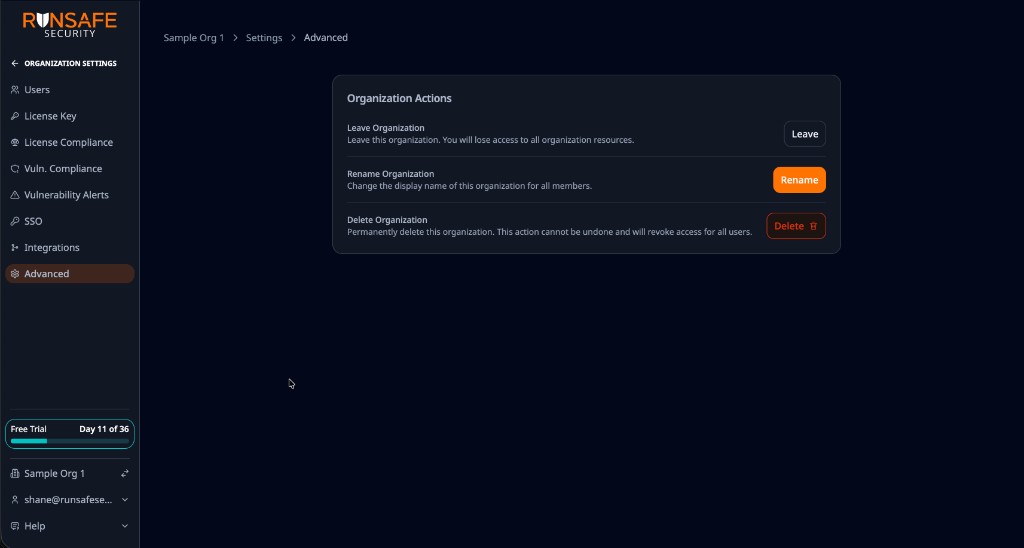
The active organization (Sample Org 1) appears in the sidebar footer with a swap icon. Select it to open the switcher or create another organization.
Choose another organization
- Optionally type in Search organizations… to filter the list.
- Under Organizations, select the organization you want.
- The Platform opens that organization's dashboard (or the matching organization-scoped page when you were already on one).
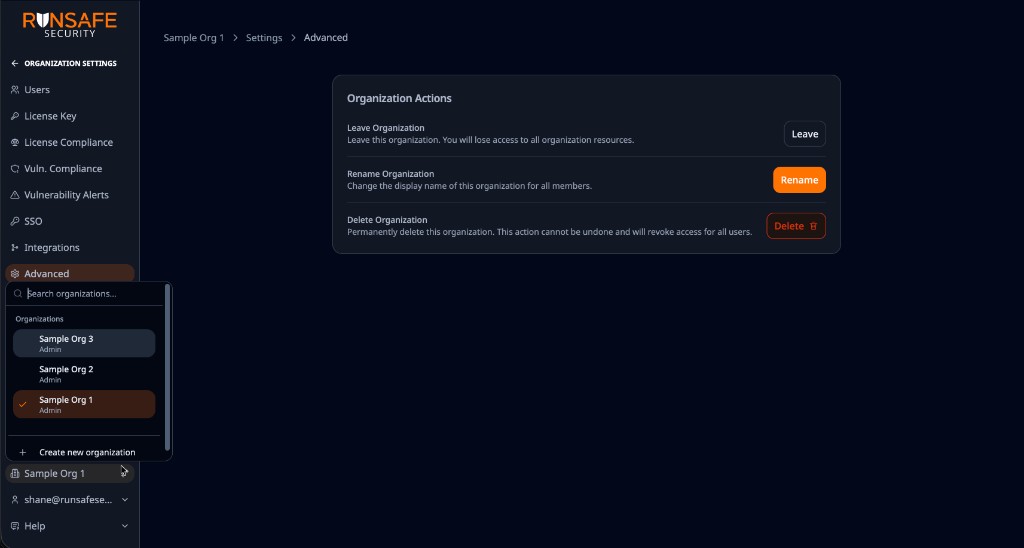
The open switcher shows Sample Org 1, Sample Org 2, and Sample Org 3, a search field, your role in each organization, a checkmark on the active organization, and Create new organization at the bottom.
Your role in the organization you select still applies. Admin-only settings remain available only when you are an admin of the active organization.
Create another organization
From the same switcher, select Create new organization when you need a separate organization (for example a different product line or customer environment). Creating an organization starts a new trial for that organization—it does not move projects from your current organization.